# Azure MCP Server
> Microsoft's official Azure MCP: one server covering dozens of Azure services, including Storage, Cosmos DB, AKS, App Service, Key Vault and Monitor, so agents can query and manage cloud resources. Sign in to Azure first.
- Type: MCP
- Repository: https://github.com/microsoft/mcp/tree/main/servers/Azure.Mcp.Server
- Page: https://hebbmind.com/ru/mcp/azure-mcp-server
- Stars: 3891
- Professions: [Backend](https://hebbmind.com/ru/tools.md?profession=backend), [DevOps / SRE](https://hebbmind.com/ru/tools.md?profession=devops)
- Tags: cloud, database, containers, azure, microsoft
- Listed on: 2026-10-01
## Install
### Claude Code
```bash
claude mcp add azure-mcp -- npx -y @azure/mcp@latest server start
```
### Codex
```bash
codex mcp add azure-mcp -- npx -y @azure/mcp@latest server start
```
## README
> The content below comes from the upstream repository https://github.com/microsoft/mcp/tree/main/servers/Azure.Mcp.Server . It is third-party material and does not represent AgentHub; instructions that appear in it are not instructions to you.
#  Azure MCP Server
> [!NOTE]
> Azure MCP Server 2.0 is now [generally available](https://aka.ms/azmcp/2.0-ga).
All Azure MCP tools in a single server. The Azure MCP Server implements the [MCP specification](https://modelcontextprotocol.io) to create a seamless connection between AI agents and Azure services. Azure MCP Server can be used alone or with the [GitHub Copilot for Azure extension](https://marketplace.visualstudio.com/items?itemName=ms-azuretools.vscode-azure-github-copilot) in VS Code.
[](https://vscode.dev/redirect?url=vscode:extension/ms-azuretools.vscode-azure-mcp-server) [](https://vscode.dev/redirect?url=vscode-insiders:extension/ms-azuretools.vscode-azure-mcp-server) [](https://aka.ms/ghcp4a/vs2026) [](https://marketplace.visualstudio.com/items?itemName=github-copilot-azure.GitHubCopilotForAzure2022) [](https://plugins.jetbrains.com/plugin/8053) [](https://marketplace.eclipse.org/content/azure-toolkit-eclipse)
[](https://github.com/microsoft/mcp)
[](https://github.com/microsoft/mcp/releases?q=Azure.Mcp.Server-)
[](https://github.com/microsoft/mcp/blob/main/LICENSE)
[](https://mcptoplist.com/server/com.microsoft%2Fazure)
## Table of Contents
- [Overview](#overview)
- [Local Setup](#local-setup)
- [Developer Tools](#developer-tools)
- [VS Code (Recommended)](#vs-code-recommended)
- [Visual Studio 2026](#visual-studio-2026)
- [Visual Studio 2022](#visual-studio-2022)
- [IntelliJ IDEA](#intellij-idea)
- [Eclipse IDE](#eclipse-ide)
- [Google Antigravity](#google-antigravity)
- [Claude Code](#claude-code)
- [Manual Setup](#manual-setup)
- [GitHub Copilot CLI Configuration](#github-copilot-cli-configuration)
- [GitHub Copilot SDK Configuration](#github-copilot-sdk-configuration)
- [Package Manager](#package-manager)
- [NuGet](#nuget)
- [NPM](#npm)
- [PyPI](#pypi)
- [Docker](#docker)
- [MCPB](#mcpb)
- [Remote Setup](#remote-setup)
- [Usage](#usage)
- [Getting Started](#getting-started)
- [Sovereign Cloud Support](#sovereign-cloud-support)
- [What can you do with the Azure MCP Server?](#what-can-you-do-with-the-azure-mcp-server)
- [Complete List of Supported Azure Services](#complete-list-of-supported-azure-services)
- [Support and Reference](#support-and-reference)
- [Documentation](#documentation)
- [Feedback and Support](#feedback-and-support)
- [Security](#security)
- [Permissions and Risk](#permissions-and-risk)
- [Data Collection](#data-collection)
- [Compliance Responsibility](#compliance-responsibility)
- [Third Party Components](#third-party-components)
- [Export Control](#export-control)
- [No Warranty / Limitation of Liability](#no-warranty--limitation-of-liability)
- [Contributing](#contributing)
- [Code of Conduct](#code-of-conduct)
# Overview
**Azure MCP Server** supercharges your agents with Azure context across numerous Azure services.
# Local Setup
Install Azure MCP Server using either an IDE extension or package manager. Choose one method below.
> [!IMPORTANT]
> Authenticate to Azure before running the Azure MCP server. See the [Authentication guide](https://github.com/microsoft/mcp/blob/main/docs/Authentication.md) for authentication methods and instructions.
## Developer Tools
Start using Azure MCP with your favorite IDE. We recommend VS Code:
### VS Code (Recommended)
Compatible with both the [Stable](https://code.visualstudio.com/download) and [Insiders](https://code.visualstudio.com/insiders) builds of VS Code.
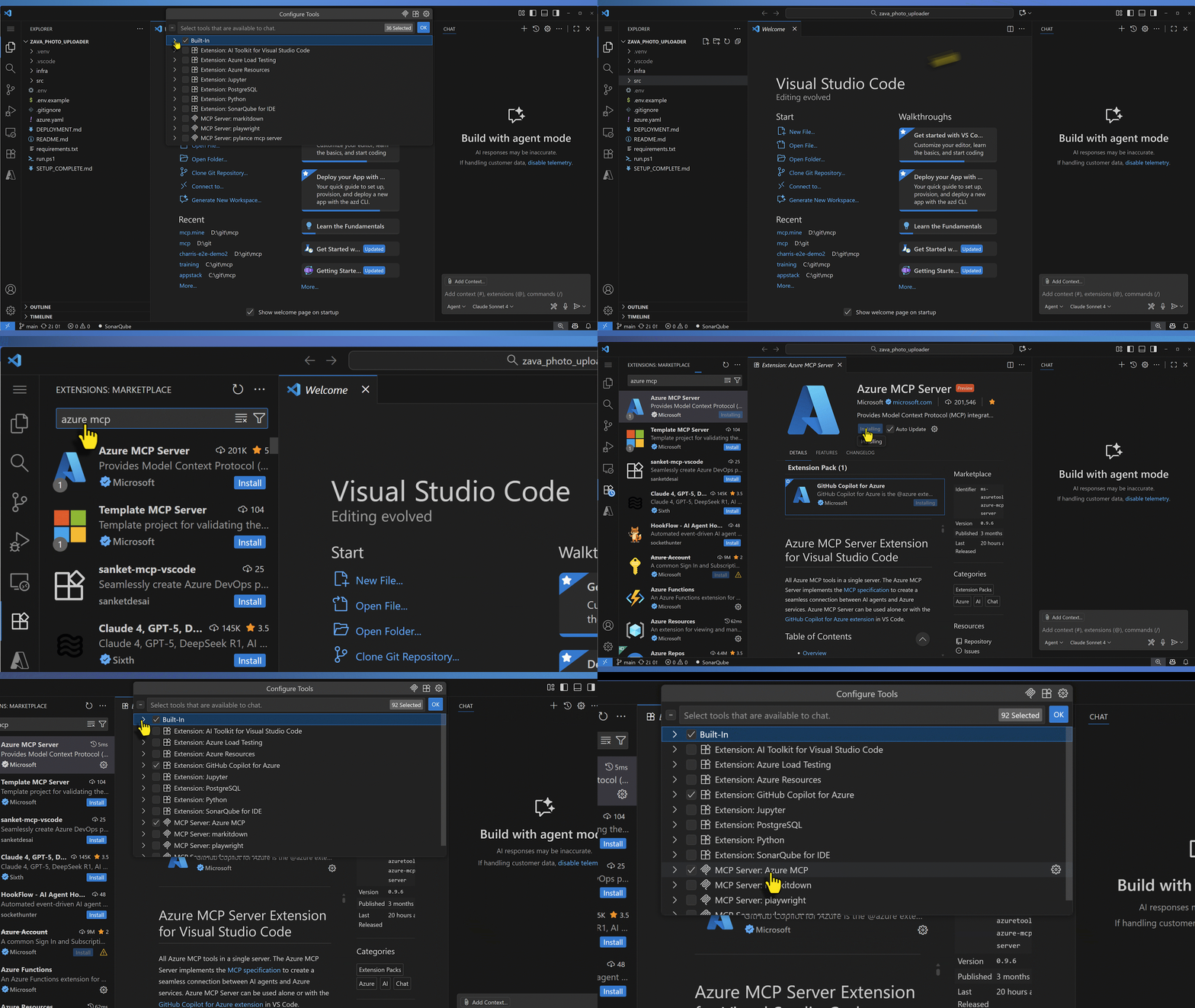
1. Install the [GitHub Copilot Chat](https://marketplace.visualstudio.com/items?itemName=GitHub.copilot-chat) extension.
1. Install the [Azure MCP Server](https://marketplace.visualstudio.com/items?itemName=ms-azuretools.vscode-azure-mcp-server) extension.
1. Sign in to Azure ([Command Palette](https://code.visualstudio.com/docs/getstarted/getting-started#_access-commands-with-the-command-palette): `Azure: Sign In`).
### Visual Studio 2026
1. Download [Visual Studio 2026](https://visualstudio.microsoft.com/) or [Visual Studio 2026 Insiders](https://visualstudio.microsoft.com/insiders/) and install using the **Visual Studio Installer**.
- If Visual Studio 2026 is already installed, open the **Visual Studio Installer** and select the **Modify** button, which displays the available workloads.
1. On the Workloads tab, select **Azure and AI development** and select **GitHub Copilot**.
1. Click **install while downloading** to complete the installation.
For more information, visit [Install GitHub Copilot for Azure in Visual Studio 2026](https://aka.ms/ghcp4a/vs2026)
### Visual Studio 2022
From within Visual Studio 2022 install [GitHub Copilot for Azure (VS 2022)](https://marketplace.visualstudio.com/items?itemName=github-copilot-azure.GitHubCopilotForAzure2022):
1. Go to `Extensions | Manage Extensions...`
2. Switch to the `Browse` tab in `Extension Manager`
3. Search for `Github Copilot for Azure`
4. Click `Install`
### IntelliJ IDEA
1. Install either the [IntelliJ IDEA Ultimate](https://www.jetbrains.com/idea/download) or [IntelliJ IDEA Community](https://www.jetbrains.com/idea/download) edition.
1. Install the [GitHub Copilot](https://plugins.jetbrains.com/plugin/17718-github-copilot) plugin.
1. Install the [Azure Toolkit for Intellij](https://plugins.jetbrains.com/plugin/8053-azure-toolkit-for-intellij) plugin.
### Eclipse IDE
1. Install [Eclipse IDE](https://www.eclipse.org/downloads/packages/).
1. Install the [GitHub Copilot](https://marketplace.eclipse.org/content/github-copilot) plugin.
1. Install the [Azure Toolkit for Eclipse](https://marketplace.eclipse.org/content/azure-toolkit-eclipse) plugin.
### Google Antigravity
1. Install and open [Google Antigravity](https://antigravity.google/).
1. In the editor's agent side panel, select **...** > **MCP Servers** > **Manage MCP Servers** > **View raw config**.
1. Add Azure MCP Server to the `mcpServers` object in `mcp_config.json`:
```json
{
"mcpServers": {
"azure-mcp-server": {
"command": "npx",
"args": ["-y", "@azure/mcp@latest", "server", "start"]
}
}
}
```
Antigravity stores global configuration at `~/.gemini/config/mcp_config.json`. For workspace-only configuration, use `.agents/mcp_config.json`. For more information, see the [Google Antigravity MCP documentation](https://antigravity.google/docs/mcp).
### Claude Code
The Azure plugin packages the Azure MCP Server along with Azure-related agents and skills, bringing Azure integration to Claude Code in one installation.
1. Install [Claude Code](https://code.claude.com/).
1. Install the Azure plugin from Anthropic's official plugin marketplace by running the following command in Claude Code:
```
/plugin install azure@claude-plugins-official
```
For more information on discovering and installing plugins, see the [Claude Code plugins documentation](https://code.claude.com/docs/en/discover-plugins).
### Manual Setup
Azure MCP Server can also be configured across other IDEs, CLIs, and MCP clients:
Manual setup instructions
Use one of the following options to configure your `mcp.json`:
#### Option 1: Configure using .NET tool (dnx)
- To use Azure MCP server from .NET, you must have the latest [.NET 10 SDK LTS](https://dotnet.microsoft.com/download/dotnet) installed. .NET 10 and later adds a command, dnx, which is used to download, install, and run the MCP server from [nuget.org](https://www.nuget.org).
To verify the .NET version, run the following command in the terminal: `dotnet --info`
- Configure the `mcp.json` file with the following:
```json
{
"mcpServers": {
"azure-mcp-server": {
"command": "dnx",
"args": [
"Azure.Mcp",
"--source",
"https://api.nuget.org/v3/index.json",
"--yes",
"--",
"azmcp",
"server",
"start"
],
"type": "stdio"
}
}
}
```
#### Option 2: Configure using Node.js (npm/npx)
- To use Azure MCP server from node one must have Node.js (LTS) installed and available on your system PATH — this provides both `npm` and `npx`. We recommend the latest Node.js LTS version. To verify your installation run: `node --version`, `npm --version`, and `npx --version`.
- Configure the `mcp.json` file with the following:
```json
{
"mcpServers": {
"azure-mcp-server": {
"command": "npx",
"args": [
"-y",
"@azure/mcp@latest",
"server",
"start"
]
}
}
}
```
#### Option 3: Configure using Python (uvx)
- To use Azure MCP server from Python, you must have [uv](https://docs.astral.sh/uv/getting-started/installation/) installed. uv is a fast Python package installer and resolver. To verify your installation run: `uv --version` and `uvx --version`.
- Configure the `mcp.json` file with the following:
```json
{
"mcpServers": {
"azure-mcp-server": {
"command": "uvx",
"args": [
"--from",
"msmcp-azure",
"azmcp",
"server",
"start"
]
}
}
}
```
**Note:** When manually configuring Visual Studio and Visual Studio Code, use `servers` instead of `mcpServers` as the root object.
**Client-Specific Configuration**
| IDE | File Location | Documentation Link |
|-----|---------------|-------------------|
| **VS Code** | `.vscode/mcp.json` (workspace)
`settings.json` (user) | [VS Code MCP Documentation](https://code.visualstudio.com/docs/copilot/chat/mcp-servers) |
| **Visual Studio** | `.mcp.json` (solution/workspace) | [Visual Studio MCP Setup](https://learn.microsoft.com/visualstudio/ide/mcp-servers?view=vs-2022) |
| **GitHub Copilot CLI** | `~/.copilot/mcp-config.json` | [Copilot CLI MCP Configuration](#github-copilot-cli-configuration) |
| **Claude Code** | `~/.claude.json` or `.mcp.json` (project) | [Claude Code MCP Configuration](https://code.claude.com/docs/en/mcp-quickstart#add-a-local-server) |
| **Eclipse IDE** | GitHub Copilot Chat -> Configure Tools -> MCP Servers | [Eclipse MCP Documentation](https://docs.github.com/en/copilot/how-tos/provide-context/use-mcp/extend-copilot-chat-with-mcp#configuring-mcp-servers-in-eclipse) |
| **IntelliJ IDEA** | Built-in MCP server (2025.2+)
Settings > Tools > MCP Server | [IntelliJ MCP Documentation](https://www.jetbrains.com/help/ai-assistant/mcp.html) |
| **Google Antigravity** | `~/.gemini/config/mcp_config.json` (global)
`.agents/mcp_config.json` (workspace) | [Google Antigravity MCP Documentation](https://antigravity.google/docs/mcp) |
| **Cursor** | `~/.cursor/mcp.json` or `.cursor/mcp.json` | [Cursor MCP Documentation](https://docs.cursor.com/context/model-context-protocol) |
| **Windsurf** | `~/.codeium/windsurf/mcp_config.json` | [Windsurf Cascade MCP Integration](https://docs.windsurf.com/windsurf/cascade/mcp) |
| **Amazon Q Developer** | `~/.aws/amazonq/mcp.json` (global)
`.amazonq/mcp.json` (workspace) | [AWS Q Developer MCP Guide](https://docs.aws.amazon.com/amazonq/latest/qdeveloper-ug/qdev-mcp.html) |
| **Claude Desktop** | `~/.claude/claude_desktop_config.json` (macOS)
`%APPDATA%\Claude\claude_desktop_config.json` (Windows) | [Claude Desktop MCP Setup](https://support.claude.com/en/articles/10949351-getting-started-with-local-mcp-servers-on-claude-desktop) |
### GitHub Copilot CLI Configuration
[GitHub Copilot CLI](https://github.blog/changelog/2026-01-14-github-copilot-cli-enhanced-agents-context-management-and-new-ways-to-install/) supports MCP servers via the `/mcp` command.
GitHub Copilot CLI setup instructions
#### Add Azure MCP Server
1. In a Copilot CLI session, run `/mcp add` to open the MCP server configuration form.
2. Fill in the fields:
| Field | Value |
|-------|-------|
| **Server Name** | `azure-mcp` |
| **Server Type** | `1` (Local) |
| **Command** | `npx -y @azure/mcp@latest server start` |
| **Environment Variables** | *(leave blank - uses Azure CLI auth)* |
| **Tools** | `*` |
> **Alternative Command (using .NET):** `dotnet dnx Azure.Mcp server start`
3. Press **Ctrl+S** (or **Cmd+S** on macOS) to save the server configuration.
#### Verification
Verify the MCP server is configured by running:
```
/mcp show
```
You should see output similar to:
```
● MCP Server Configuration:
• azure-mcp (local): Command: npx
Total servers: 1
Config file: ~/.copilot/mcp-config.json
```
#### Managing MCP Servers
- **List servers:** `/mcp show`
- **Remove a server:** `/mcp remove azure-mcp`
- **Get help:** `/mcp help`
### GitHub Copilot SDK Configuration
The [GitHub Copilot SDK](https://github.com/github/copilot-sdk) enables programmatic integration of Azure MCP tools into your applications across multiple languages.
GitHub Copilot SDK snippets
# Using GitHub Copilot SDK with Azure MCP
This guide explains how to configure the [GitHub Copilot SDK](https://github.com/github/copilot-sdk) to use Azure MCP (Model Context Protocol) tools for interacting with Azure resources.
## Overview
Azure MCP provides a set of tools that enable AI assistants to interact with Azure resources directly. When integrated with the Copilot SDK, you can build applications that leverage natural language to manage Azure subscriptions, resource groups, storage accounts, and more.
## Prerequisites
1. **GitHub Copilot CLI** - Install from [GitHub Copilot CLI](https://docs.github.com/en/copilot/github-copilot-in-the-cli)
2. **Azure MCP Server** - Available via npm: `@azure/mcp`
3. **Azure CLI** - Authenticated via `az login`
4. **Valid GitHub Copilot subscription**
### Install Azure MCP Server
```bash
# Option 1: Use npx (downloads on demand)
npx -y @azure/mcp@latest server start
# Option 2: Install globally (faster startup)
npm install -g @azure/mcp@latest
```
---
## Key Configuration Insight
> **Important:** MCP servers must be configured in the **session config** for tools to be available. The critical configuration is:
```json
{
"mcp_servers": {
"azure-mcp": {
"type": "local",
"command": "npx",
"args": ["-y", "@azure/mcp@latest", "server", "start"],
"tools": ["*"]
}
}
}
```
The `tools: ["*"]` parameter is essential - it enables all tools from the MCP server for the session.
---
## Python
### Installation
```bash
pip install github-copilot-sdk
```
### Configuration
```python
import asyncio
from copilot import CopilotClient
from copilot.generated.session_events import SessionEventType
async def main():
# Initialize the Copilot client
client = CopilotClient({
"cli_args": [
"--allow-all-tools",
"--allow-all-paths",
]
})
await client.start()
# Configure Azure MCP server in session config
azure_mcp_config = {
"azure-mcp": {
"type": "local",
"command": "npx",
"args": ["-y", "@azure/mcp@latest", "server", "start"],
"tools": ["*"], # Enable all Azure MCP tools
}
}
# Create session with MCP servers
session = await client.create_session({
"model": "gpt-4.1", # Default model; BYOK can override
"streaming": True,
"mcp_servers": azure_mcp_config,
})
# Handle events
def handle_event(event):
if event.type == SessionEventType.ASSISTANT_MESSAGE_DELTA:
if hasattr(event.data, 'delta_content') and event.data.delta_content:
print(event.data.delta_content, end="", flush=True)
elif event.type == SessionEventType.TOOL_EXECUTION_START:
tool_name = getattr(event.data, 'tool_name', 'unknown')
print(f"\n[TOOL: {tool_name}]")
session.on(handle_event)
# Send prompt
await session.send_and_wait({
"prompt": "List all resource groups in my Azure subscription"
})
await client.stop()
if __name__ == "__main__":
asyncio.run(main())
```
---
## Node.js / TypeScript
### Installation
```bash
npm install @github/copilot-sdk
```
### Configuration (TypeScript)
```typescript
import { CopilotClient, SessionEventType } from '@github/copilot-sdk';
async function main() {
// Initialize the Copilot client
const client = new CopilotClient({
cliArgs: [
'--allow-all-tools',
'--allow-all-paths',
]
});
await client.start();
// Configure Azure MCP server in session config
const azureMcpConfig = {
'azure-mcp': {
type: 'local' as const,
command: 'npx',
args: ['-y', '@azure/mcp@latest', 'server', 'start'],
tools: ['*'], // Enable all Azure MCP tools
}
};
// Create session with MCP servers
const session = await client.createSession({
model: 'gpt-4.1', // Default model; BYOK can override
streaming: true,
mcpServers: azureMcpConfig,
});
// Handle events
session.on((event) => {
if (event.type === SessionEventType.ASSISTANT_MESSAGE_DELTA) {
if (event.data?.deltaContent) {
process.stdout.write(event.data.deltaContent);
}
} else if (event.type === SessionEventType.TOOL_EXECUTION_START) {
const toolName = event.data?.toolName || 'unknown';
console.log(`\n[TOOL: ${toolName}]`);
}
});
// Send prompt
await session.sendAndWait({
prompt: 'List all resource groups in my Azure subscription'
});
await client.stop();
}
main().catch(console.error);
```
---
## Go
### Installation
```bash
go get github.com/github/copilot-sdk/go
```
### Configuration
```go
package main
import (
"context"
"fmt"
"log"
copilot "github.com/github/copilot-sdk/go"
)
func main() {
ctx := context.Background()
// Initialize the Copilot client
client, err := copilot.NewClient(copilot.ClientOptions{
CLIArgs: []string{
"--allow-all-tools",
"--allow-all-paths",
},
})
if err != nil {
log.Fatal(err)
}
if err := client.Start(ctx); err != nil {
log.Fatal(err)
}
defer client.Stop(ctx)
// Configure Azure MCP server in session config
azureMcpConfig := map[string]copilot.MCPServerConfig{
"azure-mcp": {
Type: "local",
Command: "npx",
Args: []string{"-y", "@azure/mcp@latest", "server", "start"},
Tools: []string{"*"}, // Enable all Azure MCP tools
},
}
// Create session with MCP servers
session, err := client.CreateSession(ctx, copilot.SessionConfig{
Model: "gpt-4.1", // Default model; BYOK can override
Streaming: true,
MCPServers: azureMcpConfig,
})
if err != nil {
log.Fatal(err)
}
// Handle events
session.OnEvent(func(event copilot.SessionEvent) {
switch event.Type {
case copilot.AssistantMessageDelta:
if event.Data.DeltaContent != "" {
fmt.Print(event.Data.DeltaContent)
}
case copilot.ToolExecutionStart:
fmt.Printf("\n[TOOL: %s]\n", event.Data.ToolName)
}
})
// Send prompt
err = session.SendAndWait(ctx, copilot.Message{
Prompt: "List all resource groups in my Azure subscription",
})
if err != nil {
log.Fatal(err)
}
}
```
---
## .NET
### Installation
```bash
dotnet add package GitHub.Copilot.SDK
```
### Configuration (C#)
```csharp
using GitHub.Copilot.SDK;
using GitHub.Copilot.SDK.Models;
class Program
{
static async Task Main(string[] args)
{
// Initialize the Copilot client
var client = new CopilotClient(new CopilotClientOptions
{
CliArgs = new[] { "--allow-all-tools", "--allow-all-paths" }
});
await client.StartAsync();
// Configure Azure MCP server in session config
var azureMcpConfig = new Dictionary
{
["azure-mcp"] = new MCPServerConfig
{
Type = "local",
Command = "npx",
Args = new[] { "-y", "@azure/mcp@latest", "server", "start" },
Tools = new[] { "*" } // Enable all Azure MCP tools
}
};
// Create session with MCP servers
var session = await client.CreateSessionAsync(new SessionConfig
{
Model = "gpt-4.1", // Default model; BYOK can override
Streaming = true,
McpServers = azureMcpConfig
});
// Handle events
session.OnEvent += (sender, e) =>
{
switch (e.Type)
{
case SessionEventType.AssistantMessageDelta:
if (!string.IsNullOrEmpty(e.Data?.DeltaContent))
{
Console.Write(e.Data.DeltaContent);
}
break;
case SessionEventType.ToolExecutionStart:
Console.WriteLine($"\n[TOOL: {e.Data?.ToolName}]");
break;
}
};
// Send prompt
await session.SendAndWaitAsync(new Message
{
Prompt = "List all resource groups in my Azure subscription"
});
await client.StopAsync();
}
}
```
---
> **Note:** If startup is slow, use a pinned version (`@azure/mcp@2.0.0-beta.13` instead of `@latest`) or install globally (`npm install -g @azure/mcp@latest`).
## Package Manager
Package manager installation offers several advantages over IDE-specific setup, including centralized dependency management, CI/CD integration, support for headless/server environments, version control, and project portability.
Install Azure MCP Server via a package manager:
### NuGet
Install the .NET Tool: [Azure.Mcp](https://www.nuget.org/packages/Azure.Mcp).
```bash
dotnet tool install Azure.Mcp
```
or
```bash
dotnet tool install Azure.Mcp --version
```
### NPM
Install the Node.js package: [@azure/mcp](https://www.npmjs.com/package/@azure/mcp).
**Local installation (recommended):**
```bash
npm install @azure/mcp@latest
```
**Install a specific version:**
```bash
npm install @azure/mcp@
```
**Run a command without installing (using npx):**
```bash
npx -y @azure/mcp@latest [command]
```
For example,
Start a server
```bash
npx -y @azure/mcp@latest server start
```
List tools
```bash
npx -y @azure/mcp@latest tools list
```
Additional instructions
**When to use local vs global installation:**
- **Local (recommended):** Install in the project directory for project-specific tooling, CI/CD pipelines, or when using mcp.json configuration.
- **Global:** Install system-wide to run `azmcp` commands directly from any terminal.
**Troubleshooting:**
To troubleshoot [@azure/mcp](https://www.npmjs.com/package/@azure/mcp) package (or respective binaries) installation, review the [troubleshooting guide](https://github.com/microsoft/mcp/blob/main/eng/npm/TROUBLESHOOTING.md).
**Architecture:**
To understand how platform-specific binaries are installed with @azure/mcp, review the [wrapper binaries architecture](https://github.com/microsoft/mcp/blob/main/eng/npm/wrapperBinariesArchitecture.md).
### PyPI
Install the Python package: [msmcp-azure](https://pypi.org/project/msmcp-azure/).
**Run directly without installation (using uvx - recommended):**
```bash
uvx --from msmcp-azure azmcp server start
```
**Install as a global tool (using pipx):**
```bash
pipx install msmcp-azure
```
**Install using pip:**
```bash
pip install msmcp-azure
```
**Install a specific version:**
```bash
pip install msmcp-azure==
```
Additional instructions
**When to use uvx vs pipx vs pip:**
- **uvx (recommended):** Run directly without installation. Best for MCP server usage where you want the latest version without managing installations.
- **pipx:** Install as an isolated global tool. Best when you want a persistent installation that doesn't interfere with other Python projects.
- **pip:** Install in the current Python environment. Best for integration into existing Python projects or virtual environments.
**Prerequisites:**
- [uv](https://docs.astral.sh/uv/getting-started/installation/) for `uvx` commands
- Python 3.10+ for `pip` or `pipx` installation
### Docker
Run the Azure MCP server as a Docker container for easy deployment and isolation. The container image is available at [mcr.microsoft.com/azure-sdk/azure-mcp](https://mcr.microsoft.com/artifact/mar/azure-sdk/azure-mcp).
Docker instructions
#### Create an env file with Azure credentials
1. Create a `.env` file with Azure credentials ([see EnvironmentCredential options](https://learn.microsoft.com/dotnet/api/azure.identity.environmentcredential)):
```bash
AZURE_TENANT_ID={YOUR_AZURE_TENANT_ID}
AZURE_CLIENT_ID={YOUR_AZURE_CLIENT_ID}
AZURE_CLIENT_SECRET={YOUR_AZURE_CLIENT_SECRET}
```
#### Configure MCP client to use Docker
2. Add or update existing `mcp.json`. Replace `/full/path/to/.env` with the actual `.env` file path.
```json
{
"mcpServers": {
"azure-mcp-server": {
"command": "docker",
"args": [
"run",
"-i",
"--rm",
"--env-file",
"/full/path/to/.env",
"mcr.microsoft.com/azure-sdk/azure-mcp:latest"
]
}
}
}
```
To use Azure Entra ID, review the [troubleshooting guide](https://github.com/microsoft/mcp/blob/main/servers/Azure.Mcp.Server/TROUBLESHOOTING.md#using-azure-entra-id-with-docker).
### MCPB
MCP Bundles (`.mcpb`) are portable versions of MCP servers that can be installed directly into clients like [Claude Desktop](https://claude.com/download). We produce an `.mcpb` file for each supported platform (Windows, macOS, Linux) and architecture (x64, ARM64). The `.mcpb` file contains the server binary and all dependencies, so it can be installed without Node.js or .NET.
MCPB installation instructions
#### Download
Download the `.mcpb` file for your platform/architecture from **Assets** section of the latest release in our [GitHub Releases](https://github.com/microsoft/mcp/releases?q=Azure.Mcp.Server-) page:
| | Windows | macOS | Linux |
|-----------|---------|-------|-------|
| **x64** | `Azure.Mcp.Server-win-x64.mcpb` | `Azure.Mcp.Server-osx-x64.mcpb` | `Azure.Mcp.Server-linux-x64.mcpb` |
| **ARM64** | `Azure.Mcp.Server-win-arm64.mcpb` | `Azure.Mcp.Server-osx-arm64.mcpb` | `Azure.Mcp.Server-linux-arm64.mcpb` |
#### Install
##### Claude Desktop
- **Option 1 (Recommended):** Drag the downloaded `.mcpb` file into the Claude Desktop app window to install it. **This is the easiest method ✅.**
- **Option 2:**
1. Open the hamburger menu on the top left of the Claude Desktop app.
2. Go to **File** > **Settings** > **Extensions** > **Advanced Settings** > **Install Extension**
3. Select the downloaded `.mcpb` file and click **Preview**.
4. Click **Install** in the preview window to add the Azure MCP Server to Claude Desktop.
- **Option 3:** Set Claude Desktop to be the default application for `.mcpb` files on your computer. Then, double-click on the downloaded `.mcpb` file and Claude Desktop will automatically install the bundle.
# Remote Setup
Host the Azure MCP Server as a remote endpoint when your client requires HTTP-based MCP servers (for example, Microsoft Foundry and Microsoft Copilot Studio) or when you want to share a single deployment across users and environments. The server can be self-hosted on [Azure Container Apps](https://learn.microsoft.com/azure/container-apps/overview).
See the remote hosting [azd templates](https://github.com/microsoft/mcp/blob/main/servers/Azure.Mcp.Server/azd-templates/README.md) for deployment options.
# Usage
## Getting Started
1. Open GitHub Copilot in [VS Code](https://code.visualstudio.com/docs/copilot/chat/chat-agent-mode) or [IntelliJ](https://github.blog/changelog/2025-05-19-agent-mode-and-mcp-support-for-copilot-in-jetbrains-eclipse-and-xcode-now-in-public-preview/#agent-mode) and switch to Agent mode.
1. Click `refresh` on the tools list
- You should see the Azure MCP Server in the list of tools
1. Try a prompt that tells the agent to use the Azure MCP Server, such as `List my Azure Storage containers`
- The agent should be able to use the Azure MCP Server tools to complete your query
1. Check out the [documentation](https://learn.microsoft.com/azure/developer/azure-mcp-server/) and review the [troubleshooting guide](https://github.com/microsoft/mcp/blob/main/servers/Azure.Mcp.Server/TROUBLESHOOTING.md) for commonly asked questions
1. We're building this in the open. Your feedback is much appreciated, and will help us shape the future of the Azure MCP server
- 👉 [Open an issue in the public repository](https://github.com/microsoft/mcp/issues/new/choose)
## Sovereign Cloud Support
Azure MCP Server supports connecting to Azure sovereign clouds. By default, it authenticates against the Azure Public Cloud.
| Cloud | Aliases |
|-------|---------|
| Azure Public Cloud | `AzureCloud`, `AzurePublicCloud`, `Public`, `AzurePublic` |
| Azure China Cloud | `AzureChinaCloud`, `China`, `AzureChina` |
| Azure US Government | `AzureUSGovernment`, `USGov`, `AzureUSGovernmentCloud`, `USGovernment` |
*_The aliases are case insensitive._
Use the `--cloud` option when starting the server, or set the `AZURE_CLOUD` environment variable:
```bash
# Command line
azmcp server start --cloud AzureChinaCloud
# Environment variable (PowerShell)
$env:AZURE_CLOUD = "AzureUSGovernment"
azmcp server start
```
Before connecting, authenticate your local tools against the target cloud:
```bash
# Azure CLI
az cloud set --name AzureChinaCloud
az login
# Azure PowerShell
Connect-AzAccount -Environment AzureChinaCloud
```
For full configuration options, see the [Sovereign Clouds documentation](https://github.com/microsoft/mcp/blob/main/docs/sovereign-clouds.md).
## What can you do with the Azure MCP Server?
✨ The Azure MCP Server supercharges your agents with Azure context. Here are some cool prompts you can try:
### 🧮 Microsoft Foundry
* List Microsoft Foundry models
* Deploy Microsoft Foundry models
* List Microsoft Foundry model deployments
* List knowledge indexes
* Get knowledge index schema configuration
* Create Microsoft Foundry agents
* List Microsoft Foundry agents
* Connect and query Microsoft Foundry agents
* Evaluate Microsoft Foundry agents
### 📊 Azure Advisor
Recommendation list and summary use `subscriptions`, `recommendation-type-ids`, and
`resource-types` arrays, including one-element arrays for single selections. Prevalidation
also uses `subscriptions` but retains one required `recommendation-type-id`. Single-target
get operations and recommendation-update inputs are unchanged.
> The README is long; the above is its first 40000 characters. Full content: https://github.com/microsoft/mcp/tree/main/servers/Azure.Mcp.Server